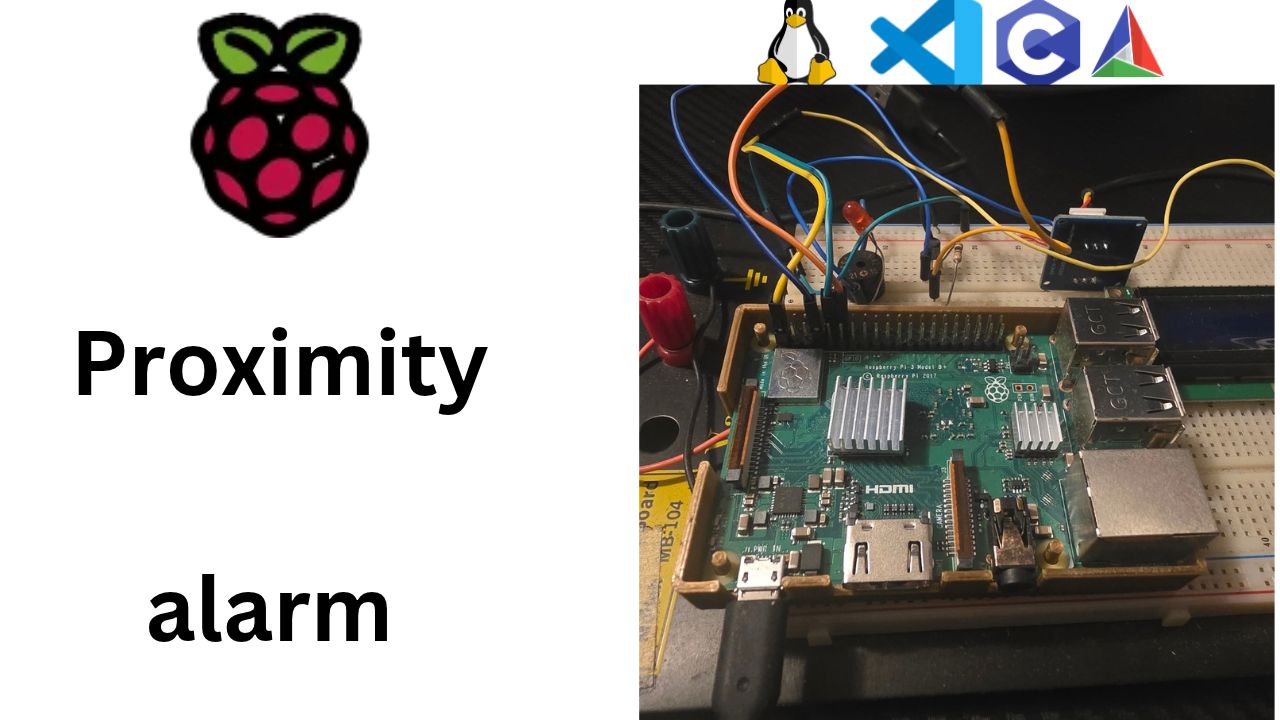
Why I Started Using This Tool
Every embedded project I've started has the same boring first hour: get code from my PC onto the board, and get a debugger attached. On earlier boards I solved it with a pile of editor config files: a settings file for the board's address, a tasks file for build and deploy, a launch file for the debugger, and a problem-matcher hack to tell the editor when the debug server was ready. It worked, but only inside that one editor, and every time I came back to a project I had to remember how all the pieces fit together.
For this Raspberry Pi proximity alarm, I wanted something simpler: a few files in Git, any terminal, one command. CMake was already building my code, so I asked myself whether it could do the rest too. It turns out it can.
Missed the console tour? Start with Part 3: dmesg, the ACT LED, and GPIO From the Console (video).
What It Does
The setup has four small pieces:
- A toolchain file (
cmake/arm-linux-gnueabihf.cmake) that tells CMake to use the Linaroarm-linux-gnueabihfcross-compiler inC:/gcc-linaro-5.1-arm-linux-gnueabihf, so Windows produces ARM Linux programs. CMakeLists.txtthat builds the program with pthreads, plus three custom targets:deploy(scpthe program to the Pi andchmod +xit),gdbserver(start the debug server on the Pi on port 2345) anddebug(launch the ARM gdb on the PC, connect, and stop atmain). Each one depends on the one before it.- A tiny gdb script generated by CMake with the board address filled in: load the symbols,
target remote au.local:2345,break main,continue. CMakePresets.jsonthat holds the board settings (userau, hostau.local, folder/home/au, port2345) once, and gives every action a short name:build,clean,deploy,gdbserver,debug, plus awin-buildpreset that builds a plain Windows version with MSYS2.
After that, cmake --build --preset debug compiles, deploys, starts gdbserver and drops me at the
first line of main, ready to step through code that's running on the Pi.
Step by Step
1. Why we build on the PC, not on the Pi
Our PC has an x86 processor (Intel or AMD). The Raspberry Pi 3 B+ has an ARM processor. They speak completely different machine languages, so a program compiled for the PC simply won't run on the Pi, and vice versa.
We could install a compiler on the Pi and build there, but the Pi is slow, and we'd be editing code over SSH. Instead we cross-compile: a compiler that runs on Windows but produces ARM Linux programs. That compiler is called a cross-compiler toolchain, and we'll use two toolchains in this project:
| Toolchain | Folder | Makes programs for |
|---|---|---|
Linaro GCC 5.1 (arm-linux-gnueabihf) | C:/gcc-linaro-5.1-arm-linux-gnueabihf | The Pi: ARM, Linux, hard-float |
| MSYS2 MinGW-w64 | C:/msys64/mingw64/bin | Windows itself (quick PC-only builds, later unit tests) |
The name arm-linux-gnueabihf reads like a sentence: ARM CPU, Linux
OS, GNU C library, EABI (the ARM rules for how functions call each other),
hf for hardware floating point. That last part matters: it must match the OS, which is why we
installed Raspberry Pi OS Lite 32-bit back in
Part 1. This toolchain targets ARMv7,
which the Pi 3 runs happily.
From the MSYS2 folder we also borrow mingw32-make.exe. Despite the "32" in its
name it's a normal 64-bit Windows build of GNU Make, and it's what actually runs the build steps CMake writes for us.
Inside the Linaro folder, the tools we care about are:
C:/gcc-linaro-5.1-arm-linux-gnueabihf/bin/arm-linux-gnueabihf-gcc.exe   the C compiler
C:/gcc-linaro-5.1-arm-linux-gnueabihf/bin/arm-linux-gnueabihf-gdb.exe   the debugger (runs on the PC)
2. The plan: CMake does everything
CMake doesn't compile anything itself. It's a build generator: you describe your
project once, and CMake writes the Makefiles that mingw32-make runs.
CMake presets (CMakePresets.json) are saved settings. Instead of typing ten
options every time, you type a short name like pi-debug.
Here's the chain we're building. Each step depends on the one before it:
build ──► deploy ──► gdbserver ──► debug
 compile    copy to Pi   start the       connect gdb from the PC,
 for ARM    + chmod +x   debug server    stop at main
                         on the Pi
A quick honest note: presets can only configure and build. They can't run "any command I
like." So how do we deploy and debug? We add custom targets in CMakeLists.txt.
A custom target is a fake "thing to build" whose recipe is any commands we want, like scp and
ssh. A build preset can then point at that target. Same cmake --build command,
totally different job.
3. Project layout
12_yt_pi/
└── proxalarm/                          the CMake project (run every command from here)
    ├── .gitignore                      build/
    ├── CMakeLists.txt                  what to build + deploy/debug targets
    ├── CMakePresets.json               the named settings (pi-debug, deploy, debug...)
    ├── cmake/
    │   ├── arm-linux-gnueabihf.cmake   toolchain file: "use the Linaro compiler"
    │   └── debug.gdb.in                gdb start-up commands (template)
    └── src/
        ├── main.c
        └── ctypes.h
Add proxalarm/.gitignore with one line, build/, so compiled files never end up in
Git. Each preset builds into its own folder, proxalarm/build/<preset>.
4. The toolchain file
The toolchain file tells CMake: "we're building for a different computer, and here's its
compiler." Create proxalarm/cmake/arm-linux-gnueabihf.cmake:
# Target: Raspberry Pi running 32-bit Linux
set(CMAKE_SYSTEM_NAME      Linux)
set(CMAKE_SYSTEM_PROCESSOR arm)

# Where the Linaro toolchain is installed
set(TOOLCHAIN "C:/gcc-linaro-5.1-arm-linux-gnueabihf" CACHE PATH "Linaro toolchain folder")
set(CROSS     ${TOOLCHAIN}/bin/arm-linux-gnueabihf-)

set(CMAKE_C_COMPILER ${CROSS}gcc.exe)
set(GDB              ${CROSS}gdb.exe CACHE FILEPATH "ARM gdb that runs on the PC")

# Look for ARM headers/libraries only inside the toolchain, never in Windows folders
set(CMAKE_FIND_ROOT_PATH ${TOOLCHAIN}/arm-linux-gnueabihf/libc)
set(CMAKE_FIND_ROOT_PATH_MODE_PROGRAM NEVER)
set(CMAKE_FIND_ROOT_PATH_MODE_LIBRARY ONLY)
set(CMAKE_FIND_ROOT_PATH_MODE_INCLUDE ONLY)
Line by line:
CMAKE_SYSTEM_NAME Linux: the moment you set this, CMake knows it's cross-compiling. It sets a variable calledCMAKE_CROSSCOMPILING, which we'll use later.TOOLCHAIN: the toolchain folder, in one place. If yours is installed elsewhere, change this one line.CMAKE_FIND_ROOT_PATH...: the Linaro folder includes a mini copy of the ARM Linux C library (a sysroot). These lines stop CMake from accidentally grabbing a Windows library when it searches for something like pthreads.
5. CMakeLists.txt: the program and the deploy/debug targets
Create proxalarm/CMakeLists.txt:
cmake_minimum_required(VERSION 3.25)
project(proxalarm C)

find_package(Threads REQUIRED)

add_executable(proxalarm src/main.c)
target_compile_options(proxalarm PRIVATE -Wall -Wextra)
target_link_libraries(proxalarm PRIVATE Threads::Threads)

if(CMAKE_CROSSCOMPILING)
    # Board settings (the preset fills these in)
    set(PI_USER  "au"       CACHE STRING "Login user on the Pi")
    set(PI_HOST  "au.local" CACHE STRING "Pi hostname or IP address")
    set(PI_DIR   "/home/au" CACHE STRING "Folder on the Pi to copy the program to")
    set(GDB_PORT "2345"     CACHE STRING "TCP port for gdbserver")

    set(REMOTE     ${PI_USER}@${PI_HOST})
    set(REMOTE_BIN ${PI_DIR}/proxalarm)
    set(SSH_OPTS   -o StrictHostKeyChecking=accept-new)

    # deploy: stop any old copy, copy the new one, make it executable
    add_custom_target(deploy
        COMMAND ssh ${SSH_OPTS} ${REMOTE} "pkill -x gdbserver; pkill -x proxalarm; true"
        COMMAND scp ${SSH_OPTS} $<TARGET_FILE_NAME:proxalarm> ${REMOTE}:${REMOTE_BIN}
        COMMAND ssh ${SSH_OPTS} ${REMOTE} chmod +x ${REMOTE_BIN}
        WORKING_DIRECTORY $<TARGET_FILE_DIR:proxalarm>
        COMMENT "Deploying proxalarm to ${REMOTE}:${PI_DIR}"
        VERBATIM)
    add_dependencies(deploy proxalarm)

    # gdbserver: start the debug server on the Pi in the background
    add_custom_target(gdbserver
        COMMAND ssh ${SSH_OPTS} ${REMOTE}
                "nohup gdbserver --once :${GDB_PORT} ${REMOTE_BIN} > /tmp/proxalarm.log 2>&1 < /dev/null &"
        COMMENT "Starting gdbserver on ${PI_HOST}:${GDB_PORT}"
        VERBATIM)
    add_dependencies(gdbserver deploy)

    # debug: connect the PC's ARM gdb to gdbserver and stop at main
    configure_file(cmake/debug.gdb.in debug.gdb @ONLY)
    add_custom_target(debug
        COMMAND ${CMAKE_COMMAND} -E sleep 1
        COMMAND ${GDB} -q -x ${CMAKE_BINARY_DIR}/debug.gdb
        USES_TERMINAL
        VERBATIM)
    add_dependencies(debug gdbserver)
endif()
The top half is a normal C project: one program called proxalarm, extra warnings on, and linked
with pthreads (Threads::Threads), because every task in our alarm will be its own thread.
The bottom half only exists when cross-compiling, so the Windows-only build never tries to SSH anywhere. Let's walk through it:
- The
PI_*andGDB_PORTvariables are cache variables: settings with a default that a preset can override. -
deployruns three commands on our behalf:- Stops any copy of the program (or gdbserver) still running on the Pi. Linux won't let you overwrite a program while it's running ("Text file busy").
; truemakes sure this step never fails just because nothing was running. scp(secure copy, which comes with SSH) copies the program to/home/au/proxalarm.StrictHostKeyChecking=accept-newmeans "the first time you see this Pi, trust it automatically instead of stopping to ask." It still refuses if the Pi's identity changes later, so it's safe.chmod +xmarks the file as executable on the Pi.
add_dependencies(deploy proxalarm)means deploy always builds first. You can never copy a stale program. - Stops any copy of the program (or gdbserver) still running on the Pi. Linux won't let you overwrite a program while it's running ("Text file busy").
gdbserverstarts gdbserver on the Pi. It's a tiny program that loadsproxalarm, freezes it before its first instruction, and waits for a debugger to connect over the network on port 2345.--oncemeans it quits after one debug session.nohup ... &runs it in the background, so thesshcommand returns right away instead of blocking. Because it's running in the background, our program'sprintfoutput goes to/tmp/proxalarm.logon the Pi.debugwaits one second so gdbserver has time to start listening, then launches the ARM gdb on the PC with a script of start-up commands.USES_TERMINALtells CMake this step needs your keyboard.
Notice the chain: debug → gdbserver → deploy → proxalarm.
Ask for debug, and CMake does all four steps in order.
6. The gdb start-up script
Create proxalarm/cmake/debug.gdb.in. The @...@ words get replaced with real values
when CMake configures (that's what configure_file(... @ONLY) does):
set pagination off
set confirm off
file @PROJECT_BINARY_DIR@/proxalarm
set architecture arm
target remote @PI_HOST@:@GDB_PORT@
break main
continue
file .../proxalarm: load the PC's copy of the program. It's the same file we sent to the Pi, and it includes the debug symbols (the map from machine code back to your source lines and variable names). The Pi runs the code; the PC holds the map.set architecture arm: be explicit that this is ARM code.target remote au.local:2345: connect to gdbserver over the network.break mainthencontinue: gdbserver stopped the program beforemaineven started, so we set a breakpoint onmainand let it run until it gets there. You always land on the first line ofmain.set pagination offandset confirm offstop gdb from interrupting with "press Enter" and "are you sure?" prompts.
7. CMakePresets.json: giving everything a short name
Create proxalarm/CMakePresets.json, next to CMakeLists.txt:
{
  "version": 6,
  "cmakeMinimumRequired": { "major": 3, "minor": 25, "patch": 0 },
  "configurePresets": [
    {
      "name": "pi-base",
      "hidden": true,
      "generator": "MinGW Makefiles",
      "binaryDir": "${sourceDir}/build/${presetName}",
      "toolchainFile": "${sourceDir}/cmake/arm-linux-gnueabihf.cmake",
      "cacheVariables": {
        "CMAKE_MAKE_PROGRAM": "C:/msys64/mingw64/bin/mingw32-make.exe",
        "PI_USER": "au",
        "PI_HOST": "au.local",
        "PI_DIR": "/home/au",
        "GDB_PORT": "2345"
      }
    },
    {
      "name": "pi-debug",
      "displayName": "Raspberry Pi - Debug",
      "inherits": "pi-base",
      "cacheVariables": { "CMAKE_BUILD_TYPE": "Debug" }
    },
    {
      "name": "pi-release",
      "displayName": "Raspberry Pi - Release",
      "inherits": "pi-base",
      "cacheVariables": { "CMAKE_BUILD_TYPE": "Release" }
    },
    {
      "name": "win-debug",
      "displayName": "Windows only - Debug",
      "generator": "MinGW Makefiles",
      "binaryDir": "${sourceDir}/build/${presetName}",
      "cacheVariables": {
        "CMAKE_BUILD_TYPE": "Debug",
        "CMAKE_MAKE_PROGRAM": "C:/msys64/mingw64/bin/mingw32-make.exe",
        "CMAKE_C_COMPILER": "C:/msys64/mingw64/bin/gcc.exe"
      }
    }
  ],
  "buildPresets": [
    { "name": "build",     "configurePreset": "pi-debug" },
    { "name": "clean",     "configurePreset": "pi-debug", "targets": ["clean"] },
    { "name": "deploy",    "configurePreset": "pi-debug", "targets": ["deploy"] },
    { "name": "gdbserver", "configurePreset": "pi-debug", "targets": ["gdbserver"] },
    { "name": "debug",     "configurePreset": "pi-debug", "targets": ["debug"] },
    { "name": "win-build", "configurePreset": "win-debug" }
  ],
  "workflowPresets": [
    {
      "name": "pi-deploy",
      "steps": [
        { "type": "configure", "name": "pi-debug" },
        { "type": "build",     "name": "deploy" }
      ]
    }
  ]
}
What's going on here:
pi-baseis hidden: you never pick it directly. It holds everything the Pi presets share: the generator, the toolchain file,mingw32-make, and the board settings. Each preset gets its own build folder, likebuild/pi-debug.pi-debugandpi-releaseinherit from it and only change the build type.Debugadds-g(debug symbols) and turns optimisation off so the debugger can follow your code line by line.Releaseoptimises (-O3) for the final program.win-debughas no toolchain file, so it builds a normal Windows.exewith the MSYS2 GCC. There's no deploy or debug for it, thanks toif(CMAKE_CROSSCOMPILING).- Build presets are where the magic happens.
clean,deploy,gdbserveranddebugare all just "build" with a different target. - The workflow preset
pi-deploychains configure and deploy into one command. Handy on a fresh checkout.
If your Pi has a different hostname or user, change it once, in pi-base.
8. One-time setup on the Pi and the PC
On the Pi, install gdbserver:
sudo apt update
sudo apt install gdbserver
On the PC, create an SSH key so scp and ssh don't ask for your
password three times on every deploy. In PowerShell:
ssh-keygen -t ed25519                         # press Enter to accept the defaults (skip if you already have a key)
type $env:USERPROFILE\.ssh\id_ed25519.pub | ssh au@au.local "mkdir -p ~/.ssh && cat >> ~/.ssh/authorized_keys"
ssh au@au.local                               # should log in with no password now
(Linux and Mac have a ssh-copy-id command for this. Windows doesn't, so we pipe the key in ourselves.)
Hostname check: I'm usingau.localhere. Use whatever hostname you typed into Raspberry Pi Imager in Part 1. If.localnames don't work on your network, use the Pi's IP address inPI_HOST.
9. A program to test with
Our real main.c already calls SWAlive_start(), the software alive task we'll write
in the next post, so it won't compile yet. For today, a tiny pthread "hello" is enough to prove the whole
pipeline works:
#include <stdio.h>
#include <stdlib.h>
#include <pthread.h>
#include <unistd.h>

static void *hello_task(void *arg)
{
    int i;

    (void)arg;
    for (i = 0; i < 5; i++)
    {
        printf("hello from the Pi, count %d\n", i);
        sleep(1);
    }
    return NULL;
}

int main(void)
{
    pthread_t thread;

    setvbuf(stdout, NULL, _IOLBF, 0);   /* line buffering, so no need for fflush(stdout) */

    if (pthread_create(&thread, NULL, hello_task, NULL) != 0)
    {
        fprintf(stderr, "could not start hello task\n");
        return EXIT_FAILURE;
    }

    pthread_join(thread, NULL);
    return EXIT_SUCCESS;
}
Notice #include <unistd.h>. That's where sleep() lives. Leave it out and GCC
warns about an "implicit declaration," which is a bug waiting to happen.
10. Using it: the five commands
Run these from the proxalarm folder (cd C:\git\12_yt_pi\proxalarm), in any terminal:
| Command | What it does |
|---|---|
cmake --preset pi-debug | Configure: pick the toolchain, write the Makefiles into build/pi-debug (once, or after editing CMake files) |
cmake --build --preset build | Build: compile proxalarm for ARM |
cmake --build --preset clean | Clean: delete the compiled files |
cmake --build --preset deploy | Build, then copy to the Pi and chmod +x |
cmake --build --preset debug | Build, deploy, start gdbserver, and debug from main |
cmake --workflow --preset pi-deploy | Configure + build + deploy in one go |
Let's prove the build really is for ARM. After deploy, ask the Pi:
ssh au@au.local file /home/au/proxalarm
# /home/au/proxalarm: ELF 32-bit LSB executable, ARM, EABI5 version 1 (SYSV), dynamically linked ...

ssh au@au.local /home/au/proxalarm
# hello from the Pi, count 0
# hello from the Pi, count 1 ...
ELF 32-bit, ARM: built on Windows, running on the Pi.
11. Your first debug session
cmake --build --preset debugYou'll see the build, the deploy, then gdb connecting and stopping:
Breakpoint 1, main () at C:/git/12_yt_pi/proxalarm/src/main.c:23
23          setvbuf(stdout, NULL, _IOLBF, 0);
(gdb)
You're now controlling a program running on the Pi, from your PC. A survival kit of gdb commands:
| Command | Short | What it does |
|---|---|---|
next | n | Run the current line, stepping over function calls |
step | s | Run the current line, stepping into function calls |
break hello_task | b hello_task | Stop when this function runs (also works with b main.c:13) |
continue | c | Run until the next breakpoint |
print i | p i | Show a variable's value |
info threads | List the threads (you'll see our hello task!) | |
backtrace | bt | Show the chain of function calls that got us here |
quit | q | End the session (the program on the Pi stops too) |
Want to see the source code while you step? Press Ctrl+X then A to toggle gdb's built-in text UI.
To see the program's printf output while you debug, open a second terminal:
ssh au@au.local tail -f /tmp/proxalarm.logYou may see warnings at connect time about shared library symbols or library versions not matching. That's because our toolchain's copy of the C library is older than the one on the Pi. It only affects stepping inside the C library itself. Breakpoints and stepping in our code work fine.
12. When things go wrong
| Problem | What it means | Fix |
|---|---|---|
Could not resolve hostname au.local | Wrong hostname, or .local names don't resolve on your network | Use your Imager hostname, or the Pi's IP address in PI_HOST |
| Asked for a password on every deploy | No SSH key installed on the Pi | Repeat step 8 |
bash: gdbserver: command not found | gdbserver isn't installed on the Pi | sudo apt install gdbserver |
cannot execute binary file: Exec format error on the Pi | The program was built for Windows (wrong preset) | Configure with pi-debug, not win-debug |
CMAKE_MAKE_PROGRAM is not set / make not found | MSYS2 isn't installed where the preset expects | Fix the mingw32-make.exe path in CMakePresets.json |
Connection refused / Connection timed out on port 2345 | gdb connected before gdbserver was ready | Run debug again, or raise -E sleep 1 to 2 |
Changed CMakePresets.json or CMakeLists.txt, nothing changed | Old configure settings still in the cache | cmake --preset pi-debug --fresh |
| Ctrl+C in gdb also killed the build | Windows sends Ctrl+C to every program in the terminal | Use breakpoints to stop the program, or run gdb directly from proxalarm/: arm-linux-gnueabihf-gdb -x build/pi-debug/debug.gdb after cmake --build --preset gdbserver |
13. What's next
We now have the full loop: edit, build, deploy, debug, all with short commands and a few small files in Git.
That's exactly the boring foundation we need before the fun part. Next, we write the first real piece of the
proximity alarm: the software alive task, a pthread that prints a heartbeat to the console.
It's the SWAlive_start() that's waiting in our main.c. (And if you prefer clicking
breakpoints in VS Code, it can attach to this exact same gdbserver. We'll cover that later.)
Key Takeaways
- Cross-compiling means building ARM Linux programs on the PC. The toolchain file points CMake at the Linaro
arm-linux-gnueabihfcompiler, andmingw32-makefrom MSYS2 runs the build. - Presets only configure and build, but custom targets can do anything.
deploy,gdbserveranddebugare custom targets, and build presets give each one a short name. - Dependencies make the chain automatic:
debug→gdbserver→deploy→ build. You can never deploy or debug an old program. - Remote debugging splits the work. gdbserver runs the program on the Pi. The ARM gdb on the PC holds the debug symbols and talks to it over the network on port 2345.
- One source of truth: board settings (
au,au.local,/home/au,2345) live once inCMakePresets.json, and everything works from any terminal or editor.
Final Verdict
If you're cross-compiling for a Linux board, put your deploy and debug steps in CMake, not in your editor. It's free, it's checked into Git with your code, and it works the same in PowerShell, in VS Code's terminal, or on a teammate's laptop.
Honest gotchas I hit:
- Presets alone can't deploy or debug. They only configure and build. Custom targets are the trick that makes it work.
- Set up an SSH key first, or you'll type your Pi password three times on every deploy.
- Install gdbserver on the Pi (
sudo apt install gdbserver). It isn't there by default on Raspberry Pi OS Lite. - Ctrl+C in gdb on Windows can kill the whole build command. Use breakpoints, or run gdb directly when you need to interrupt.
- Terminal gdb takes a little getting used to. Learn
n,s,b,c,pandbt, and press Ctrl+X A for a source view. Ten minutes later it feels natural.
Watching a program I compiled on Windows stop at main on a Raspberry Pi, from a single command,
never gets old. Next up: the first real thread of the proximity alarm.