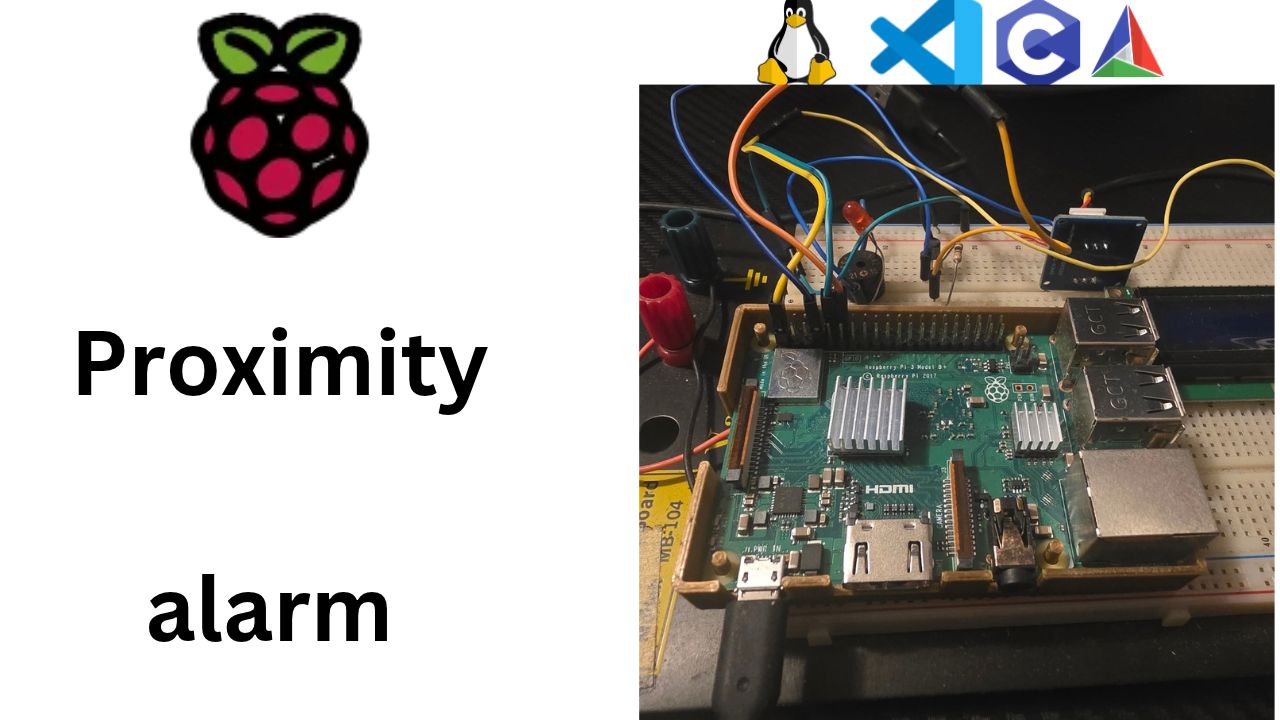
Why I Started Using This Tool
When I first started with embedded Linux, I went straight for the C compiler. I wanted to write code that blinked an LED, so I wrote code that blinked an LED, and when it didn't work I had no idea whether the problem was my code, my wiring, or Linux itself.
What fixed that for me was learning to talk to the kernel directly from the console first.
Before I write a single line of C for this Raspberry Pi proximity alarm, I want to know that the hardware
works and that I understand how Linux exposes it. dmesg tells me what the kernel found at boot,
and the files in /sys and the GPIO tools let me flip pins by hand. If it works from the console,
any bug later is in my code.
Missed the first boot? Start with Part 2: First Boot and SSH on the Raspberry Pi (video).
Here's the video walkthrough of this post, if you'd rather watch it step by step:
What It Does
Three small tools cover almost everything:
sudo dmesgshows the kernel ring buffer: every driver, device and warning since boot.sudo dmesg -wfollows it live, andgrepfinds the SD card, the Wi-Fi chip, or power warnings in seconds./sys/class/leds/ACT/is the kernel's LED driver shown as files. Writenonetotriggerand1or0tobrightness, and the onboard green LED obeys. Writeheartbeatortimer, and the kernel blinks it for you.pinctrland libgpiod (gpioset,gpioget,gpioinfo) drive and read real GPIO pins, so I can check GPIO18 (buzzer), GPIO23/24 (ultrasonic sensor) and GPIO2/3 (I2C LCD) with a multimeter before wiring anything up.
Underneath it all is one big idea: the kernel owns the hardware, and user-space programs, including the one I'm about to write, ask it for access through system calls and special files.
Step by Step
1. Reading the kernel's diary with dmesg
Connect to the Pi like last time:
ssh au@au.localWhile the Linux kernel boots and runs, it writes notes about everything it does: hardware it found, drivers it loaded, problems it ran into. These notes go into a chunk of memory called the kernel ring buffer. "Ring" means that when it's full, the oldest messages get overwritten by new ones, like a circular notebook.
The command to read it is dmesg ("display messages"). Let's try it:
dmesg
# dmesg: read kernel buffer failed: Operation not permitted
Don't worry, nothing is broken. Raspberry Pi OS is based on Debian, and Debian locks the kernel log so only
the administrator can read it (the setting is called dmesg_restrict). Just add sudo:
sudo dmesg | less # scroll with arrows, q to quit
These are the same lines we watched scroll past on the monitor, starting at
[ 0.000000] Booting Linux on physical CPU 0x0. A few options make it much friendlier:
sudo dmesg -T                     # real clock times instead of seconds-since-boot
sudo dmesg -H                     # "human" mode: colours, relative times, built-in pager
sudo dmesg --level=err,warn       # only errors and warnings
sudo dmesg -w                     # follow live: new messages appear as they happen (Ctrl+C to stop)
And since it's all just text, we can search it with grep (-i means "ignore upper/lower case"):
sudo dmesg | grep -i mmc          # the SD card
sudo dmesg | grep -i brcmfmac     # the Wi-Fi chip
sudo dmesg | grep -i voltage      # power supply complaints
sudo dmesg | grep -i gpio         # GPIO drivers
Fun experiment: run sudo dmesg -w and plug a USB stick into the Pi. You'll see the kernel
announce the new device the moment it detects it. That's the kernel talking to you live.
systemd also keeps a copy of the kernel messages in its journal, and the journal can even remember previous boots:
journalctl -k            # kernel messages from this boot
journalctl -k -b -1      # kernel messages from the previous boot (if the journal is kept on disk)
journalctl may also ask for sudo, or show only part of the log, depending on your user's groups.
2. Kernel space vs user space
We keep saying "the kernel." What is it, really?
Picture an apartment building. The kernel is the building manager: the only person with keys to every room, the boiler, the electricity and the front door. The programs are the tenants. A tenant can't walk into the boiler room and turn knobs. They have to knock on the manager's door and ask: "Please turn up my heat." The manager checks they're allowed, does it, and reports back.
On a computer it works the same way:
- Kernel space is where the kernel and its device drivers run. A driver is the piece of code that knows how to talk to one specific kind of hardware: the SD card, the Wi-Fi chip, the GPIO pins, the LED. Code here can touch any memory and any hardware. A bug here can crash the whole machine.
- User space is where every normal program runs: the shell you're typing in, SSH, systemd, and soon our proximity alarm written in C. Each program gets its own protected memory, so if it crashes, only that program dies and Linux keeps running.
- The CPU itself enforces this split. The ARM processor has privilege levels, and user programs simply aren't allowed to execute the instructions that touch hardware directly.
- The "knock on the manager's door" is called a system call. When our C program calls
open(),read(),write()orusleep(), those functions ask the kernel to do the real work on its behalf.
So our project will be a user-space application. It won't drive the GPIO pins with its bare hands. It will politely ask the kernel's drivers to do it. That's slightly slower, but much safer, and it's exactly how most embedded Linux products are built.
Let's look at both sides from the shell:
uname -r                 # kernel version, e.g. 6.12.xx-v7+
cat /proc/version        # kernel version plus the compiler that built it
ps -p 1 -o comm=         # systemd: process number 1, the first user-space program
lsmod | head             # some of the driver modules loaded into the kernel right now
3. "Everything is a file"
How does a user program ask the kernel for things? Very often, by reading and writing files that aren't really files. Linux shows kernel information and controls as pretend files in three special folders:
| Folder | What it is | Example |
|---|---|---|
/proc | Info about processes and the kernel | cat /proc/cpuinfo shows the CPU |
/sys | Devices and drivers, with knobs you can turn | /sys/class/leds/ is every LED the kernel controls |
/dev | Device "doors" for programs to open | /dev/gpiochip0 (GPIO), /dev/i2c-1 (I2C, once enabled) |
Nothing in these folders lives on the SD card. When you cat one of them, the kernel makes up
the answer on the spot. When you write to one, a driver acts on it. That's the trick we'll use next to
control real hardware from the console.
cat /proc/cpuinfo | grep -i model    # ARMv7 Processor rev 4 (v7l) / Raspberry Pi 3 Model B Plus
ls /dev/gpiochip*                     # the GPIO controller(s)
4. Map of the hardware: the 40-pin header
Along the edge of the Pi is the 40-pin GPIO header. GPIO means General-Purpose Input/Output: pins your software can switch on and off (output) or read (input).
The confusing part for every beginner: each pin has two numbers.
- Physical pin number: its position on the header, 1 to 40. Pin 1 is the one with the square solder pad, nearest the SD card end of the board.
- BCM GPIO number: the name the Broadcom chip, and therefore Linux, uses. Physical pin 12 is GPIO18.
Software always talks in BCM numbers. Wiring diagrams often use physical numbers. Mix them up and you'll be blinking the wrong pin. The Pi can draw the map for you:
pinout # if missing: sudo apt install python3-gpiozeroHere are the pins we'll use in this project. Write this table down, because every wiring post from here on refers back to it:
| Function | BCM GPIO | Physical pin | Notes |
|---|---|---|---|
| LCD1602 I2C data (SDA) | GPIO2 | 3 | I2C bus 1 |
| LCD1602 I2C clock (SCL) | GPIO3 | 5 | I2C bus 1 |
| Buzzer (through the 2N3904 transistor) | GPIO18 | 12 | Can do hardware PWM, handy for volume and tone |
| HC-SR04 TRIG | GPIO23 | 16 | Output: starts a measurement |
| HC-SR04 ECHO | GPIO24 | 18 | Input: must go through a voltage divider |
| 5 V power | — | 2, 4 | For the sensor and the LCD |
| 3.3 V power | — | 1, 17 | |
| Ground | — | 6, 9, 14, 20, … | Any GND pin works |
| ACT LED | (onboard) | — | Controlled through the kernel's LED driver |
The one rule you must never forget: the Pi's GPIO pins are 3.3 V only. They are not 5 V tolerant. Feed 5 V into a GPIO pin and you can permanently damage the Pi. That's exactly why the HC-SR04's Echo pin, which outputs 5 V, gets a voltage divider in the sensor post.
Want to see what the kernel thinks every pin is doing right now?
sudo cat /sys/kernel/debug/gpio     # the kernel's own GPIO status report
gpioinfo                            # same idea, nicer format (sudo apt install gpiod)
5. Controlling the ACT LED from the console
The green ACT LED belongs to the kernel's LED driver, and the driver shows it to us as a folder in /sys:
ls /sys/class/leds/
# ACT  PWR   (older kernels call them led0 and led1)

ls /sys/class/leds/ACT/
# brightness  max_brightness  trigger  ...
Two files matter:
trigger: what event makes the LED blink.brightness: on (1) or off (0) when we're in manual control.
cat /sys/class/leds/ACT/trigger
# none ... [mmc0] ... timer ... heartbeat ...
The word in [square brackets] is the current trigger. mmc0 means "blink
whenever the SD card is busy," which is why we saw it flicker during boot.
Let's take control. First, a quick gotcha: sudo echo none > trigger does not
work. sudo only applies to echo, while the > redirect is done by your
own non-admin shell, so you get "Permission denied." The fix is to pipe into sudo tee, which
writes the file as admin:
echo none | sudo tee /sys/class/leds/ACT/trigger      # manual mode
echo 1    | sudo tee /sys/class/leds/ACT/brightness   # LED on
echo 0    | sudo tee /sys/class/leds/ACT/brightness   # LED off
Look at the board. The green LED is obeying your laptop. No code, no compiler, just writing text into a file that the kernel driver listens to. Now let the kernel do the blinking for us:
echo heartbeat | sudo tee /sys/class/leds/ACT/trigger   # double-thump like a heartbeat

echo timer | sudo tee /sys/class/leds/ACT/trigger       # steady blink...
echo 100   | sudo tee /sys/class/leds/ACT/delay_on      # ...on for 100 ms
echo 900 | sudo tee /sys/class/leds/ACT/delay_off # ...off for 900 ms(delay_on and delay_off only appear once the timer trigger is selected.) When you're done, give the LED back to the SD card:
echo mmc0 | sudo tee /sys/class/leds/ACT/triggerThese settings aren't permanent anyway. A reboot puts everything back to the default. Later in the series, our C program's alive task does exactly what we just did by hand: it opens these same files and writes to them.
6. Poking a real GPIO pin
The LED had a kernel driver with a friendly folder. Ordinary GPIO pins need a GPIO tool. Raspberry Pi OS ships one called pinctrl:
pinctrl get 18           # show GPIO18's current mode and level
pinctrl set 18 op dh     # make GPIO18 an OutPut, Drive it High (3.3 V)
pinctrl set 18 dl        # Drive Low (0 V)
pinctrl set 18 ip pd     # back to an InPut with the Pull-Down resistor on (a safe state)
pinctrl get 2,3          # our I2C pins (they show a0 = I2C once I2C is enabled)
If pinctrl complains about permissions, put sudo in front.
The other common toolkit is libgpiod (sudo apt install gpiod). It talks to the
kernel through the official GPIO "door," /dev/gpiochip0, the same way our C program will:
gpiodetect                         # list the GPIO controllers
gpioinfo gpiochip0                 # list every line (pin) and who's using it
gpioset -c gpiochip0 18=1          # drive GPIO18 high; it stays high until you press Ctrl+C
gpioget -c gpiochip0 24            # read GPIO24 (prints active or inactive)
Heads-up: the syntax changed between libgpiod version 1 and version 2. On an older Raspberry Pi OS (Bookworm, v1), you writegpioset --mode=wait gpiochip0 18=1andgpioget gpiochip0 24. Check yours withgpioset --version.
Want proof? Hold a multimeter between physical pin 12 (GPIO18) and a GND pin. Drive high: about 3.3 V. Drive low: about 0 V. Or wire an LED with a 330 Ω resistor in series. Never connect an LED to a pin without a resistor, and never connect an output pin straight to GND or 5 V.
What about /sys/class/gpio? Lots of older tutorials "export" pins with
echo 18 > /sys/class/gpio/export. That interface is deprecated. On newer
kernels the numbers don't even match anymore (GPIO18 might be line 530, because the chip's numbers start at
512). Use pinctrl or libgpiod instead, and your knowledge will carry straight into C.
7. When things go wrong
| Problem | What it means | Fix |
|---|---|---|
dmesg: read kernel buffer failed: Operation not permitted | The kernel log is admin-only on Debian | sudo dmesg |
sudo echo ... > /sys/... says Permission denied | The redirect runs without sudo | echo ... | sudo tee /sys/... |
/sys/class/leds/ACT doesn't exist | Older kernel naming | Use /sys/class/leds/led0 |
gpioset: unrecognized option '-c' | You have libgpiod v1 | gpioset --mode=wait gpiochip0 18=1 |
gpioset says Device or resource busy | Another program or driver already owns that pin | Check gpioinfo to see who's using it |
Key Takeaways
sudo dmesgreads the kernel's ring buffer, the same boot messages we saw on the monitor and more. Add-T,--level=err,warnor-w, and usegrepto find what you need.- The kernel and its drivers run in kernel space; our programs run in user space. User programs ask the kernel for hardware access through system calls.
- Everything is a file:
/proc,/sysand/devare the kernel's windows and knobs. Writing text to/sys/class/leds/ACT/controls the green LED with no code at all. - Pins have two numbers. Software uses BCM GPIO numbers, while the header uses physical pins. GPIO is 3.3 V only, never 5 V.
- Use
pinctrlor libgpiod (gpioset/gpioget) to test pins, not the deprecated/sys/class/gpio.
Final Verdict
If you're learning embedded Linux, spend an evening on the console before you open your C
editor. It's free, nothing needs installing beyond gpiod, and you'll understand what
your future code is actually doing.
Honest gotchas I hit:
dmesgneedssudoon Raspberry Pi OS. The "Operation not permitted" error is normal, not a broken install.sudo echo x > filedoesn't work. Useecho x | sudo tee file.- Skip
/sys/class/gpiotutorials. That interface is deprecated and its pin numbers no longer match on newer kernels. - 3.3 V means 3.3 V. One 5 V signal into a GPIO pin can kill the Pi.
- Give the LED back with
echo mmc0 | sudo tee /sys/class/leds/ACT/trigger, or just reboot.
Watching that green LED blink on command from my laptop, with zero code, is still one of my favourite "aha" moments. Next up: setting up CMake presets so the real C code can take over.