Why I Started Using This Tool
For a long time my electronics bench had a permanent monitor and keyboard parked on it, just for the Pi. Every time I wanted to change one line of code, I'd swivel my chair, squint at a small screen, and type on a keyboard that was always covered in jumper wires.
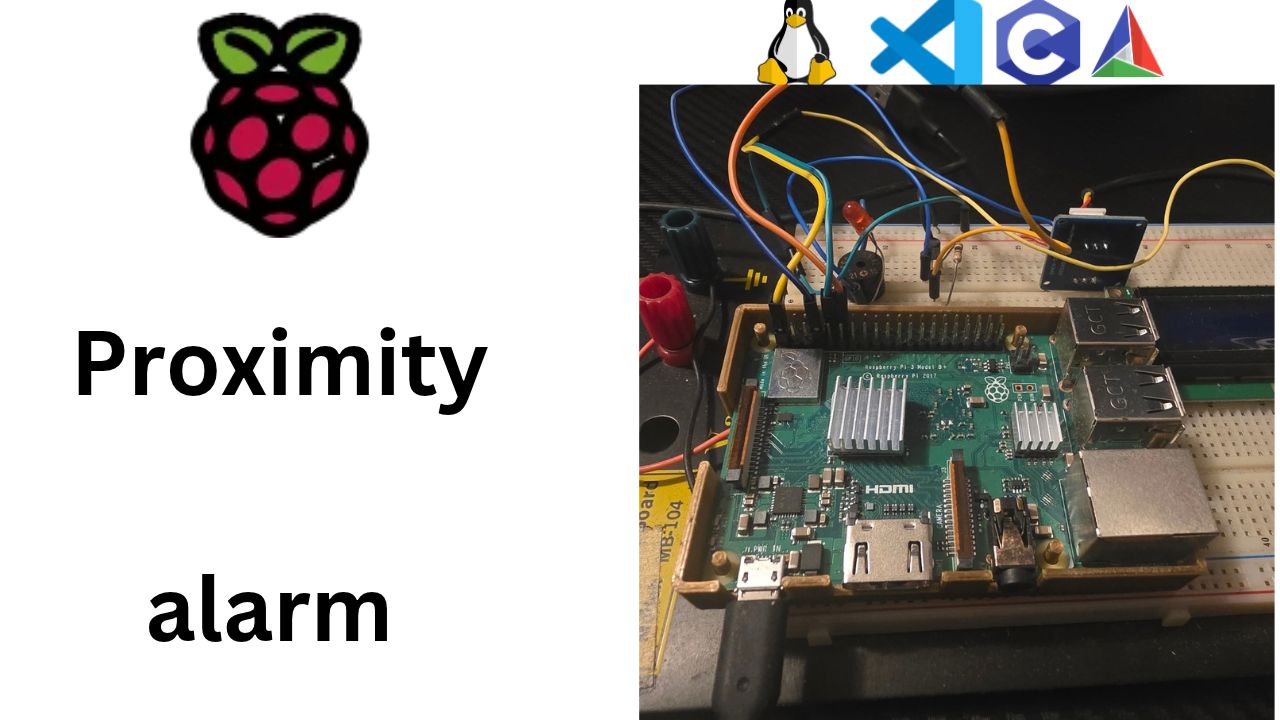
When I started this proximity alarm project, a Raspberry Pi 3 B+ running embedded C, I wanted a cleaner setup that a beginner could copy: the Pi sits on the bench with just power and Wi-Fi, and I do everything from my normal PC. The tool that makes that possible is SSH. I still plug in a monitor exactly once, for the first boot, because watching Linux start up line by line is the best way to understand what's going on inside the board.
Missed the SD card setup? Start with Part 1: Imaging a Raspberry Pi SD Card (video).
What It Does
SSH (Secure Shell) opens the Pi's command line inside a window on your PC, over the
network, with everything encrypted. It's built into Windows 10/11, macOS and Linux, so there's nothing to
install. You type ssh user@au.local, enter your password, and you're working on the Pi as
if you were sitting in front of it.
The first boot with a monitor is my one-time check that everything works:
- I watch the kernel boot messages to confirm the board, the SD card, and the Wi-Fi chip were all detected. Afterwards,
dmesgshows the same log whenever I want it. - I log in once at the console and run
hostname -Ito get the Pi's IP address. Withau.localI usually don't even need it. - I confirm the OS is 32-bit armhf with
getconf LONG_BITanddpkg --print-architecture, so the programs from my cross-compiler will run.
After that the HDMI cable comes out and it's SSH all the way.
Step by Step
1. Hook up the hardware (power goes in last)
Here's what you need on the bench:
- The Raspberry Pi 3 Model B+
- The microSD card we imaged last time
- An HDMI cable and a monitor or TV. The Pi 3 B+ has a full-size HDMI port, so a regular cable works.
- A USB keyboard. It's optional, but handy for logging in at the console today.
- A power supply: micro-USB, 5.1 V, 2.5 A. The official Pi 3 supply is ideal. Phone chargers often can't deliver enough current.
The order matters:
- Slide the microSD card into the slot on the underside of the board, metal contacts facing the board. It only goes in one way. Don't force it.
- Plug in HDMI and the keyboard.
- Plug in power last. The Pi has no power button, so it starts booting the instant it gets power.
Now watch the two little LEDs near the corner of the board:
- PWR (red): should stay solid on. If it flickers or goes out, your power supply is too weak. Linux will even complain about "undervoltage" in its log.
- ACT (green): flickers whenever the Pi reads the SD card. Remember this LED: later in the series our program takes control of it and blinks it as a "the app is alive" heartbeat.
2. What actually happens when a Pi boots
The Pi boots in a relay race, and each runner hands off to the next:
- GPU firmware. Surprise: the graphics chip wakes up first, not the main CPU. A tiny program burned into the chip looks on the SD card's bootfs partition for
bootcode.bin, then loadsstart.elf, the main firmware. This is when you see the rainbow square on screen. - config.txt. The firmware reads
config.txt, the Pi's hardware settings file (display, which interfaces are on, and so on). We'll edit it in the UART post. - The Linux kernel. The firmware loads the kernel (the core of the operating system, which talks directly to the hardware) and hands it the instructions in
cmdline.txt. One of those instructions says where the real operating system lives: the second partition, rootfs. - systemd. Once the kernel is running and has mounted rootfs, it starts the first user program, systemd. That's the service manager that starts everything else: networking, Wi-Fi, SSH, and the login prompt.
- The login prompt. The relay race is done and the Pi is waiting for you.
First-boot heads-up: the very first boot is slower and may reboot once by itself. That's normal. On that first boot the Pi grows the rootfs partition to fill your whole SD card and applies the settings we chose in Imager (user, hostname, Wi-Fi, SSH). Give it a minute or two and don't pull the plug.
3. Read the kernel boot messages
As the kernel starts, text scrolls by fast. Each line is a kernel log message. Here's a cleaned-up example of the kind of lines you'll see (your exact numbers and versions will be different):
[    0.000000] Booting Linux on physical CPU 0x0
[    0.000000] Linux version 6.x.y ... (gcc ...) #1 SMP ...
[    0.000000] OF: fdt: Machine model: Raspberry Pi 3 Model B Plus Rev 1.3
[    0.000000] Memory: 9xxxxxK/1xxxxxxK available ...
[    1.2xxxxx] mmc0: new high speed SDHC card at address aaaa
[    1.2xxxxx]  mmcblk0: p1 p2
[    3.5xxxxx] EXT4-fs (mmcblk0p2): mounted filesystem ...
[    5.8xxxxx] brcmfmac: F1 signature read ... / Firmware: BCM4345/6 ...
[  OK  ] Started ssh.service - OpenBSD Secure Shell server.
How to read them:
[ 0.000000 ]is the time in seconds since the kernel started. It's great for spotting what's slow.- Machine model: the kernel identified our exact board from the device tree, a description of the hardware that the firmware hands to the kernel.
- Memory: how much of the 1 GB of RAM Linux can use. The GPU reserves a slice for itself.
- mmc0 / mmcblk0: p1 p2: the SD card was detected (
mmcblk0), and so were its two partitions.p1is bootfs andp2is rootfs. - EXT4-fs (mmcblk0p2): mounted: the real operating system is now available. This is the hand-off from the kernel to systemd.
- brcmfmac: the driver for the Pi's Broadcom Wi-Fi chip loading its firmware. If Wi-Fi ever fails, look here first.
[ OK ] Started ...: these green lines come from systemd, not the kernel, as it starts each service. Look forssh.service. That's our ticket to remote access.
Didn't see much text? On many Raspberry Pi OS images, cmdline.txt contains the
word quiet, which hides most kernel messages on the screen. The whole log is still kept in
memory, and after login you can read it any time:
dmesg | less          # the kernel's message log (q to quit)
journalctl -k         # same kernel messages, via systemd's journal
journalctl -b         # everything from this boot, kernel + services
Little side quest: dmesg | grep -i voltage will tell you if your power supply has been struggling.
4. Log in at the console
When the scrolling stops you'll see something like:
Debian GNU/Linux 12 au tty1

au login:
That's the hostname we set in Imager, which proves our settings were applied. Type the username, press Enter, then the password. The password doesn't show while you type, not even as stars. That's normal on Linux. Just type it and press Enter. You'll land at the shell prompt:
au@au:~ $
Read it left to right: user au, at host au, in folder ~ (your
home folder), and $ means you're a normal user, not the administrator. Let's poke around:
hostname                    # au
uname -a                    # kernel version and build info
cat /etc/os-release         # which Raspberry Pi OS / Debian release
getconf LONG_BIT            # 32  <- our 32-bit OS, as chosen in Imager
dpkg --print-architecture   # armhf <- matches our arm-linux-gnueabihf compiler
Those last two lines are the important ones for this series. They confirm the Pi's software is
32-bit armhf, the same flavour our cross-compiler builds. (Don't be surprised if
uname -m says aarch64 on some setups. The kernel can be 64-bit while everything
our programs run on is 32-bit. getconf and dpkg are the ones that matter for us.)
5. Find the Pi's IP address
To connect from the PC we need to know where the Pi is on the network. Every device on your home network gets an IP address, like a house number, usually handed out automatically by your router (this is called DHCP). Three ways to find it:
Option A: ask the Pi (we're logged in, so this is easiest):
hostname -I       # prints just the IP address(es), e.g. 192.168.1.42
ip a              # the detailed view of every network interface
In ip a output, look for:
wlan0: the Wi-Fi interface. Your address is on theinetline, e.g.inet 192.168.1.42/24.eth0: the Ethernet port, if you plugged in a cable.lo: the "loopback," meaning the Pi talking to itself (127.0.0.1). Ignore it.
Option B: ask the router. Log in to your router's web page and look at the list of connected devices for au.
Option C: skip the number entirely with au.local. Raspberry Pi OS runs a
small service (Avahi, which uses mDNS) that announces "I'm au!" on the
local network. Mac and Linux PCs understand .local names out of the box, and Windows 10/11
usually do too. If .local doesn't work on your PC, just use the IP address.
Pro tip: your router might give the Pi a different IP next week. Most routers let you set a
DHCP reservation so au always gets the same address.
6. First SSH connection from your PC
Windows 10/11, macOS and Linux all have the ssh command built in. On Windows, open
PowerShell or Windows Terminal.
ssh au@au.local
# or, using the IP address:
ssh au@192.168.1.42
The format is user@host: who you want to log in as, and which machine. The very first time, you'll get a scary-looking question:
The authenticity of host 'au.local (192.168.1.42)' can't be established.
ED25519 key fingerprint is SHA256:Xy3...
Are you sure you want to continue connecting (yes/no/[fingerprint])?
This is SSH being careful, not an error. Every SSH server has a unique host key, like a
fingerprint. Your PC has never met this Pi before, so it asks you to confirm. Type yes
(the whole word). Your PC saves the fingerprint in a file called known_hosts
(in C:\Users\you\.ssh\ on Windows, ~/.ssh/ on Mac/Linux) and will check it every
time from now on. Then enter your password, and there's the same prompt we saw on the monitor:
au@au:~ $. Same Pi, same shell, but now it's on our PC.
7. When it doesn't work: the top three errors
| Error | What it means | Fix |
|---|---|---|
Could not resolve hostname au.local | Your PC can't find the .local name | Use the IP address instead |
Connection refused | The Pi is there, but SSH isn't running | On the Pi: sudo systemctl enable --now ssh (or re-image with SSH enabled) |
WARNING: REMOTE HOST IDENTIFICATION HAS CHANGED! | The Pi's fingerprint changed, usually because you re-imaged the SD card | On the PC: ssh-keygen -R au.local (and the IP), then connect again |
That last one looks like a hacker alert, and it is the warning you'd get if someone were impersonating your Pi. But during development, 99% of the time it just means you flashed a fresh card.
8. From here on, it's SSH only
Update the system (it needs internet, which our Wi-Fi already provides):
sudo apt update             # refresh the list of available packages
sudo apt full-upgrade -y    # install the updates
sudo means "run this as the administrator." It'll ask for your password.
Shut down properly:
sudo poweroff     # shut down; wait for the green ACT LED to stop blinking, then unplug
sudo reboot       # restart
Never just yank the power while Linux is running. It may be in the middle of writing to the SD card, and a cut-off write can corrupt the filesystem. That's the number-one way Pi SD cards get "mysteriously" broken.
Now unplug the HDMI cable and keyboard. From now on, the Pi only needs power and Wi-Fi.
Boot it, wait about 30 seconds, ssh au@au.local, and you're in.
Key Takeaways
- The Pi boots in a relay: GPU firmware →
config.txt→ Linux kernel → mount rootfs → systemd → login prompt. The first boot is slower and may reboot once. - Kernel boot messages tell the story of your hardware. You can re-read them any time with
dmesgorjournalctl -k. - Find the Pi with
hostname -Ion the Pi, in your router's device list, or skip the IP and useau.local. - Connect with
ssh user@host. Answeryesto the first fingerprint question. After re-imaging, clear the old key withssh-keygen -R. - Always shut down with
sudo poweroff. Pulling the power can corrupt the SD card.
Final Verdict
If you're learning embedded Linux, get comfortable with SSH on day one. It's how professionals work with boards that don't even have a screen, and it makes your Pi feel like part of your PC instead of a separate gadget.
A few honest gotchas I've run into:
- After re-imaging the SD card, SSH shows a big "REMOTE HOST IDENTIFICATION HAS CHANGED" warning. It's not a hack. Run
ssh-keygen -R au.localand connect again. .localnames don't always work on every PC or network. Keep the IP address handy, or set a DHCP reservation in your router.- Use a proper power supply and shut down with
sudo poweroff. Most "my SD card died" stories come down to a weak charger or a yanked cable.
One monitor, one time, and then never again. Next up: watching the Pi boot over its UART pins, no screen required.