Why I Started Using This Tool
For years, my routine for a new Raspberry Pi went like this: download an image, flash it with a generic
tool like dd or Etcher, then hook the Pi up to a monitor and keyboard so I could create a
user, join Wi-Fi and turn on SSH. Sometimes I skipped the monitor and created a blank ssh
file plus a hand-written Wi-Fi config on the boot partition instead, and crossed my fingers.
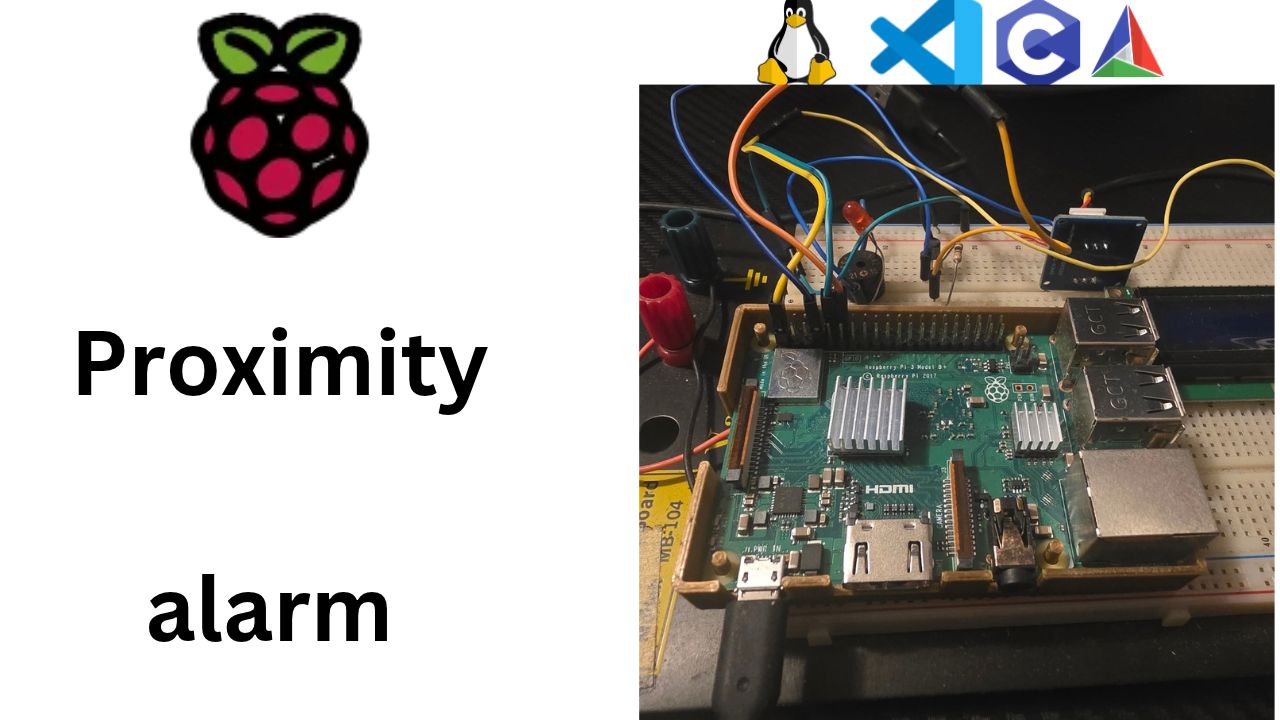
Then I started this project, a proximity alarm on a Raspberry Pi 3 B+ written in embedded C, and I wanted a setup that any beginner could repeat without a pile of spare cables. That's when I properly sat down with Raspberry Pi Imager. It turned my whole messy routine into a few screens.
Here's the video walkthrough of the same setup, if you'd rather watch it step by step:
What It Does
Raspberry Pi Imager is the official, free SD card tool from Raspberry Pi, for Windows, macOS and Linux. In one flow it:
- Filters by board: you pick your Pi model first, and it only offers operating systems that will boot on it.
- Downloads the OS for you: no hunting for image files or unzipping archives.
- Pre-configures the system: hostname, username and password, Wi-Fi network and country, timezone and keyboard, and SSH. All of it is applied automatically on the first boot.
- Writes and verifies: after writing, it reads the card back to make sure every byte made it. That's a real lifesaver with cheap or counterfeit cards.
For my project I chose Raspberry Pi 3 → Raspberry Pi OS (other) → Raspberry Pi OS Lite
(32-bit). Lite skips the desktop, since I control everything over SSH. The 32-bit version
matches the arm-linux-gnueabihf cross-compiler I use to build my C code on the PC. Ten
minutes later I had a card that booted straight onto my Wi-Fi, ready for me to log in from my laptop.
Step by Step
A Raspberry Pi has no built-in hard drive. The microSD card is the hard drive: the bootloader files, the Linux kernel and the whole operating system all live on it. An image is a single file holding a complete copy of a disk, partitions and all, so it has to be written byte-for-byte rather than dragged over like photos. For Raspberry Pi OS that gives you two partitions: bootfs (small FAT32, boot files and kernel, readable on Windows and macOS) and rootfs (ext4 Linux partition with the OS, which Windows can't read, and that's normal).
What you'll need
- A microSD card, 8 GB or larger (16–32 GB is the sweet spot). Look for Class 10 or A1 on the label.
- An SD card reader for your computer, built-in or USB.
- Heads-up: writing the image erases everything on the card.
1. Download Raspberry Pi Imager
Get it from raspberrypi.com/software
for Windows, macOS or Linux (on Ubuntu you can also run sudo apt install rpi-imager).
Install it and plug in your SD card.
2. Choose Device → Raspberry Pi 3
There's no separate "B+" entry. The B+ is part of the Pi 3 family and uses the same images, so just pick Raspberry Pi 3. Imager then only shows operating systems that will boot on that board.
3. Choose OS → Raspberry Pi OS Lite (32-bit)
Skip the desktop version at the top of the list. Open Raspberry Pi OS (other) and select Raspberry Pi OS Lite (32-bit):
- Lite means no desktop, only a text console. The Pi boots faster and keeps more of its 1 GB of RAM free for our program.
- 32-bit matches our toolchain. We'll cross-compile our C code on the PC with
gcc-linaro-5.1-arm-linux-gnueabihf, which produces 32-bit ARM hard-float programs (Debian calls this armhf). On the 32-bit OS they run directly.
4. Choose Storage → your SD card
Slow down here. This is the one step where a wrong click can really hurt: pick your USB backup drive by mistake and Imager will happily wipe it. Check the size (a "32 GB" card usually shows as about 29.7 GB), and if it's not obviously the SD card, unplug other USB drives and check again.
5. OS customisation: the headless magic
Click Next and Imager offers to customise the OS (older versions use an Edit Settings dialog with tabs, newer ones walk through each page). The settings are the same:
- Hostname: I'm using
au, so later I can reach it asau.localinstead of memorizing an IP address. - Username and password: pick your own. The old default
pi/raspberryuser is gone, and without a user you can't log in remotely. - Wi-Fi: enter your SSID and password, and set the Wi-Fi country. Different countries allow different radio channels, so without it the Pi keeps its Wi-Fi radio off. The Pi 3 B+ supports both 2.4 GHz and 5 GHz.
- Locale and timezone: so log timestamps make sense and your keys type the right symbols.
- SSH: turn on Enable SSH with password authentication. SSH (Secure Shell) gives you an encrypted command line over the network. You can switch to public-key authentication later.
Running the Pi without a monitor, keyboard or mouse attached is called a headless setup. These customisation settings are what make it possible.
6. Write and verify
Confirm erasing the card. Imager downloads the OS image (first time only, then it's cached), writes it, and verifies it by reading everything back. That catches bad or fake cards before they cause weird problems later, so let it finish even on slower cards.
Windows gotcha: afterward Windows may say "You need to format the disk in drive E: before you can use it." Click Cancel! That's the Linux partition Windows can't read, and formatting it would destroy what you just wrote.
7. Quick sanity check
Remove the card and plug it back in. You should see a drive called bootfs with files like
config.txt, cmdline.txt and the kernel image. Your settings get applied
during the first boot, so the first boot takes longer than normal and the Pi may even
reboot itself once. That's expected.
Key Takeaways
- The SD card is the Pi's hard drive. Raspberry Pi Imager writes a full disk image to it. Don't just copy files over.
- Pick Raspberry Pi 3, then Raspberry Pi OS Lite (32-bit). Lite because we work from the console over SSH, and 32-bit to match our
arm-linux-gnueabihfcross-compiler. - Use OS customisation for a headless setup. Set the hostname, user, Wi-Fi and SSH before the first boot, so you never need a keyboard or monitor.
- Set the Wi-Fi country. Without it the Pi's Wi-Fi radio stays off.
- Double-check the target drive, and click Cancel on the Windows "format" prompt.
Final Verdict
If you're starting with a Raspberry Pi, use Raspberry Pi Imager and use its OS customisation screen. It's the fastest, least error-prone way I've found to get a headless Pi running, and it's how every video in this series starts.
It isn't perfect, so watch out for these:
- Set the Wi-Fi country. If it's missing, the Pi's Wi-Fi radio stays off and you'll think your password is wrong.
- Triple-check the storage device. Imager will erase whatever drive you point it at.
- Be patient with the verify step on slower cards. Don't skip it.
- On Windows, click Cancel when it offers to format the card afterward.
Get those right and you'll never need to dig out a spare keyboard for a Pi again. Next up: the first boot, and my first SSH login.