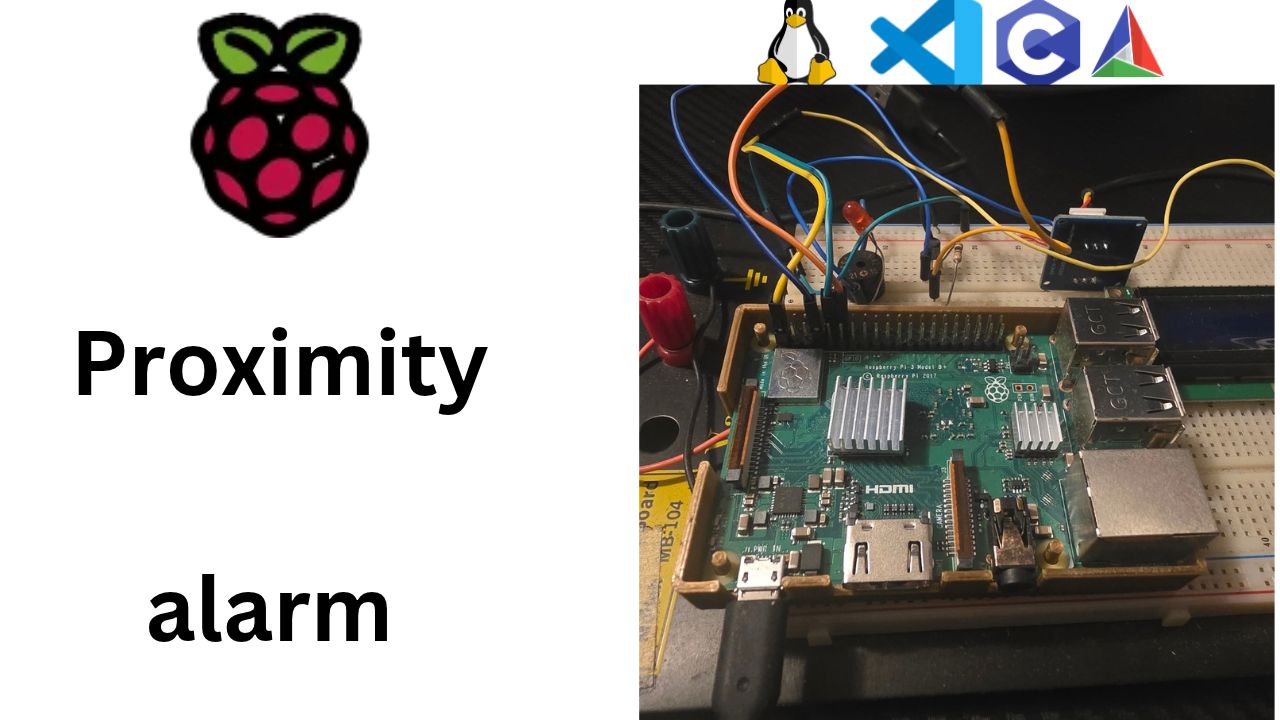
Why I Started Using This Tool
My proximity alarm is a STEM demo, which means it lives on a table at schools and fairs, not on my desk. Up to now, every run started the same way: open the laptop, SSH into the Pi, type the program's path. That's fine for development, and useless on demo day. There's no laptop at the table, the school Wi-Fi may not let me in, and if someone bumps the power cable, the demo is dead until I come back.
A real embedded device starts its job the moment it gets power. Your microwave doesn't ask you to log in before it heats your coffee. I wanted my Pi to behave the same way, and I wanted to do it properly, not with a hack I found in a ten-year-old forum post.
Missed the build setup? Start with Part 4: One Command to Build, Deploy and Debug (video).
What It Does
systemd is the first program Linux starts after the kernel boots (process ID 1), and it's in charge of starting
everything else. To add my program to that list, I wrote one small file,
/etc/systemd/system/proxalarm.service:
ExecStart=/home/au/proxalarm: the program to run, the same file my CMakedeploytarget copies over.User=root: because the next steps drive the ACT LED and GPIO pins, which need root on Raspberry Pi OS.Restart=on-failureandRestartSec=2: if the program crashes, systemd starts it again two seconds later.WantedBy=multi-user.target: start it when the system is fully booted.
Then three commands: sudo systemctl daemon-reload to read the file,
sudo systemctl enable --now proxalarm to start it now and at every boot, and
journalctl -u proxalarm -f to watch its printf output. I tested it the honest way:
sudo reboot, and then literally pulling the plug. Both times the program came back on its own, and
the journal showed its output from the new boot.
Step by Step
1. What happens after the kernel boots
Back in Part 3 we used dmesg
to read the kernel's boot messages. Those messages end at an important moment. Let's find it:
dmesg | grep -i "init"
# [    2.6...] Run /sbin/init as init process
That line is the kernel handing over control. The kernel's job is the hardware: memory, CPU, drivers, GPIO. But the kernel doesn't log you in, start SSH or connect to Wi-Fi. For all of that, it starts one program in user space, the very first process, with process ID 1. Every other program on the Pi is a child, grandchild or great-grandchild of that process.
Who is process 1?
ps -p 1 -o pid,comm
#   PID COMMAND
#     1 systemd
On Raspberry Pi OS (and most Linux distributions today), PID 1 is systemd.
/sbin/init is just a link to it:
readlink -f /sbin/init
# /usr/lib/systemd/systemd
systemd's job is to start everything else in the right order: mount the SD card's filesystems, bring up the
network, start SSH, and give you a login prompt. Each of those jobs is described by a small text file called a
unit. A unit that runs a program is a service, and its file name ends in
.service.
Units are grouped into targets, which are like checkpoints in the boot. The one we care about:
systemctl get-default
# multi-user.target
multi-user.target means "the system is fully up, without a desktop." That's exactly where Raspberry
Pi OS Lite ends its boot, and it's where we'll hook in our program. So the plan is simple: write
a .service file for proxalarm, and tell systemd it's part of multi-user.target.
power on ──► firmware ──► kernel ──► systemd (PID 1) ──► multi-user.target
                                                          ├── ssh.service
                                                          ├── NetworkManager.service
                                                          └── proxalarm.service   ◄── ours
2. Why systemd, and not the "old tricks"?
If you search "run program on boot Raspberry Pi," you'll find a few other answers. Here's why I'm not using them:
| Method | What it does | Problem |
|---|---|---|
~/.bashrc | Runs when you log in | Never runs if nobody logs in. On demo day, nobody does. |
/etc/rc.local | Old-style startup script | Legacy. Only works through a compatibility shim, no restart, no logs. |
crontab @reboot | cron runs a command once at boot | Works, but no restart on crash, no easy start/stop, no clean logs. |
| systemd service | PID 1 starts and watches our program | Restarts on crash, keeps logs, start/stop/status commands. |
systemd is already there, it's the official way, and it gives us three things for free: automatic start, automatic restart, and logs.
3. The unit file, line by line
Service files that we add live in /etc/systemd/system/. Create ours on the Pi:
sudo nano /etc/systemd/system/proxalarm.service[Unit]
Description=Proximity alarm (embedded C demo)
[Service]
Type=simple
ExecStart=/home/au/proxalarm
WorkingDirectory=/home/au
User=root
Restart=on-failure
RestartSec=2
[Install]
WantedBy=multi-user.targetSave with Ctrl+O, Enter, and exit with Ctrl+X. Now let's read it like a sentence.
[Unit]: what is this?
Description=is the human-friendly name you'll see insystemctl statusand in the logs.- You might expect an
After=line saying "wait until the SD card is mounted." We don't need one. systemd adds sensible default dependencies to every service, so it already waits for the basic system, filesystems included. We also don't wait for the network, because our alarm doesn't need it. Fewer dependencies means a faster start.
[Service]: how do I run it?
Type=simplemeans "the program inExecStartis the service." It doesn't fork into the background itself, it just runs. That's exactly how ourmain()works.ExecStart=/home/au/proxalarmis the program to run. It must be a full path. This is the same file thatcmake --build --preset deploycopies over in Part 4.WorkingDirectory=/home/auis the folder the program "stands in," so any relative file paths we use later resolve there.User=rootruns the program as root. Why? Over the next posts we'll blink the ACT LED through/sys/class/leds/ACT/and drive GPIO pins, and on Raspberry Pi OS writing the LED files needs root. For a single-purpose demo device that's a reasonable trade-off. (In a product, you'd run as a normal user and give it only the permissions it needs, for example through thegpioandi2cgroups and a udev rule for the LED.)Restart=on-failuretells systemd: "if the program crashes or exits with an error code, start it again." If it exits cleanly withreturn EXIT_SUCCESS, systemd leaves it alone. That's an important detail, and we'll see it in action in a moment.RestartSec=2waits 2 seconds before restarting, so a program that crashes instantly doesn't hammer the CPU.
[Install]: when should it start at boot?
WantedBy=multi-user.targetsays "when the system reachesmulti-user.target, I want this service running too." This line only does something when we enable the service, which is the next step.
4. Installing it: daemon-reload, enable and start
systemd reads unit files into memory. After creating or editing one, tell it to re-read them:
sudo systemctl daemon-reloadNow here is the part that confuses everyone at first, so let's go slowly. There are two different things you can do with a service:
| Command | What it does | Survives a reboot? |
|---|---|---|
sudo systemctl start proxalarm | Run it now | No |
sudo systemctl enable proxalarm | Run it at every boot from now on | Yes, but doesn't run it now |
sudo systemctl enable --now proxalarm | Both at once | Yes |
Start is now. Enable is at boot. Let's do both:
sudo systemctl enable --now proxalarm
# Created symlink /etc/systemd/system/multi-user.target.wants/proxalarm.service → /etc/systemd/system/proxalarm.service.
Look at that output. "Enable" isn't magic. It just creates a link inside a folder named after
the target from our WantedBy= line. Let's look at it:
ls /etc/systemd/system/multi-user.target.wants/
# ... proxalarm.service  ssh.service ...
When systemd reaches multi-user.target during boot, it starts everything in that folder, and now our
program is in there, right next to SSH.
5. Checking on it: status and journalctl
systemctl status proxalarm○ proxalarm.service - Proximity alarm (embedded C demo)
Loaded: loaded (/etc/systemd/system/proxalarm.service; enabled; preset: enabled)
Active: inactive (dead) since ...; 3s ago
Process: 1234 ExecStart=/home/au/proxalarm (code=exited, status=0/SUCCESS)
...
hello from the Pi, count 0
hello from the Pi, count 1
hello from the Pi, count 2
hello from the Pi, count 3
hello from the Pi, count 4
proxalarm.service: Deactivated successfully.Three things to read here:
Loaded: ... enabled: it will start at boot.Active:: is it running right now?- The last lines: the program's own
printfoutput.
Wait, where did our printf go? There's no terminal attached to a service. systemd catches everything
the program writes to stdout and stderr and stores it in the journal,
the system log. systemctl status shows the last few lines. To see all of it, use journalctl:
journalctl -u proxalarm          # every log line from our service
journalctl -u proxalarm -b       # only from this boot
journalctl -u proxalarm -f       # follow live, like tail -f (Ctrl+C to stop)
-u means "unit." (Our au user can read the journal because Raspberry Pi OS puts the
first user in the adm group. If you see no entries, put sudo in front.)
Remember this line from our main.c in Part 4?
setvbuf(stdout, NULL, _IOLBF, 0); /* line buffering, so no need for fflush(stdout) */
Here's where it pays off. When stdout is a terminal, C sends text out line by line. But when
stdout is a pipe into the journal, the C library switches to big blocks to save
time, and our messages could sit in a buffer for ages and show up all at once, or never if the program crashes.
_IOLBF forces line-by-line output, so every printf shows up in the journal immediately.
6. An honest note: why it says "inactive (dead)"
You might be worried by that Active: inactive (dead). Don't be. Our test program from Part 4 prints
five lines and then return EXIT_SUCCESS. It finished, cleanly, with status 0. And
because we chose Restart=on-failure, systemd correctly does not restart a program
that ended successfully.
Once our real main() runs its threads forever (starting next post), status will show a
green active (running) and stay that way.
But I want to see the restart feature work. Let's simulate a crash. Start the service and, while it's still counting, send it the signal a real crash would cause, SIGSEGV (segmentation fault):
sudo systemctl start proxalarm; sleep 2; sudo kill -SEGV $(pidof proxalarm)
journalctl -u proxalarm -n 15
hello from the Pi, count 0
hello from the Pi, count 1
proxalarm.service: Main process exited, code=killed, status=11/SEGV
proxalarm.service: Failed with result 'signal'.
proxalarm.service: Scheduled restart job, restart counter is at 1.
Started proxalarm.service - Proximity alarm (embedded C demo).
hello from the Pi, count 0
...The program "crashed," systemd noticed, waited two seconds, and started it again. On a device sitting on a table at a STEM fair, that's the difference between "it froze" and "it hiccupped for two seconds."
7. The real test: reboot
Everything so far happened while we were logged in. The whole point is that it works when we're not. So:
sudo rebootYour SSH session drops. Give the Pi about 30 seconds, then log back in and ask what happened during this boot:
ssh au@au.local
journalctl -u proxalarm -b
Started proxalarm.service - Proximity alarm (embedded C demo).
hello from the Pi, count 0
hello from the Pi, count 1
...Nobody typed a command, and the program ran. That's our goal checked off: the app starts after every boot or reboot.
Bonus: how long did it take to start?
systemd-analyze blame | grep proxalarm
#     12ms proxalarm.service
And you can try the "trip over the power cable" test for real: pull the plug, put it back, and check the journal again.
8. Living with the service while you develop
Now there's a catch, and it bites everyone. From now on there are two ways our program can be
running: the copy systemd starts at boot, and the copy we launch with deploy or debug
from Part 4. They get in each other's way:
- Deploy fails with
Text file busy. Linux won't let you overwrite a program file while it's running. Ourdeploytarget already runspkill -x proxalarmfirst, but that runs as userau, and the service runs as root, sopkillisn't allowed to stop it. - Two copies fight over the hardware. Once we add the LED, buzzer and LCD, a boot copy and a debug copy would both be driving the same pins.
The rule is simple: stop the service before you deploy or debug, start it when you're done.
ssh au@au.local sudo systemctl stop proxalarm     # before deploy/debug
ssh au@au.local sudo systemctl start proxalarm    # run the new version as a service
stop only stops it now. It stays enabled, so it still comes back at the next boot.
If you don't want to remember that, you can make deploy do it for you. In
proxalarm/CMakeLists.txt, the first command of the deploy target is:
COMMAND ssh ${SSH_OPTS} ${REMOTE} "pkill -x gdbserver; pkill -x proxalarm; true"Put a service stop in front of it:
COMMAND ssh ${SSH_OPTS} ${REMOTE} "sudo systemctl stop proxalarm 2>/dev/null; pkill -x gdbserver; pkill -x proxalarm; true"
This works without a password prompt because the user you created in Raspberry Pi Imager is allowed to use
sudo without a password by default. The 2>/dev/null; ... true part keeps deploy
working even on a Pi where the service isn't installed yet.
9. Turning it off
| Command | What it does |
|---|---|
sudo systemctl stop proxalarm | Stop it now (still starts at next boot) |
sudo systemctl disable proxalarm | Don't start at boot anymore (removes the link) |
sudo systemctl disable --now proxalarm | Both |
sudo rm /etc/systemd/system/proxalarm.service then sudo systemctl daemon-reload | Remove it completely |
10. When things go wrong
| Problem | What it means | Fix |
|---|---|---|
status=203/EXEC in systemctl status | systemd couldn't run the file at all | Check the full path in ExecStart, that the file exists, and that it's executable (chmod +x) |
203/EXEC and Exec format error in the journal | The file was built for Windows, not ARM | Deploy with the pi-debug preset, not win-debug |
Unit proxalarm.service not found | systemd hasn't read the new file | sudo systemctl daemon-reload and check the file name |
Edited the .service file, nothing changed | systemd still uses the old copy in memory | sudo systemctl daemon-reload then sudo systemctl restart proxalarm |
| Started now, but not after reboot | You used start but not enable | sudo systemctl enable proxalarm |
Service runs but the journal shows no printf lines | Output is stuck in the C library's buffer | Keep setvbuf(stdout, NULL, _IOLBF, 0); at the top of main |
Start request repeated too quickly | It crashed too many times in a row, and systemd gave up | Fix the crash (journalctl -u proxalarm), then sudo systemctl reset-failed proxalarm |
Deploy fails with Text file busy | The service is running the file you're copying over | sudo systemctl stop proxalarm first, or add it to deploy (step 8) |
11. What's next
Phase 2 is done. We can build, deploy and debug with one command, and the Pi now runs our program on its own at
every boot. That's the full workflow of a real embedded Linux product. Next we start Phase 3 and
write the first real piece of the proximity alarm: the software alive task, a pthread that prints
a heartbeat forever. And once main() never exits, systemctl status will finally show that
green active (running).
Key Takeaways
- systemd is PID 1. The kernel starts it first, and it starts everything else, including our program.
- A service is just a small text file in
/etc/systemd/system/:[Unit]says what it is,[Service]says how to run it,[Install]says when to start it at boot. - Start is now, enable is at boot.
sudo systemctl enable --now proxalarmdoes both. Rundaemon-reloadafter every edit to the file. - Logs live in the journal.
journalctl -u proxalarm -fshows yourprintfoutput, and_IOLBFmakes it show up immediately. - Stop the service before you deploy or debug. Otherwise the boot copy and your new copy fight over the same file and, later, the same hardware.
Final Verdict
If you need a program to start on boot on a Raspberry Pi, use a systemd service. Skip
.bashrc, rc.local and crontab @reboot. systemd is already running on your
Pi, it's ten lines of text, and you get automatic restart and logging for free.
Honest gotchas I hit:
startis notenable.startruns it now,enableruns it at boot. I "installed" it withstart, rebooted, and it was gone. Useenable --now.- Run
daemon-reloadafter every edit to the.servicefile, or systemd keeps using the old version. - "inactive (dead)" isn't always bad. My test program finishes after five lines, so systemd correctly leaves it stopped.
Restart=on-failureonly restarts real failures. - Your
printfoutput goes to the journal, not a terminal, and the C library buffers it there.setvbuf(stdout, NULL, _IOLBF, 0)makes it show up line by line. - The boot copy gets in the way of development. Deploy failed with "Text file busy" until I added
sudo systemctl stop proxalarmbefore copying. Stop the service before you deploy or debug.
Pulling the power cable and watching the Pi bring my program back with nobody touching it is the moment this stopped feeling like a dev board and started feeling like a device. Next up: the first real thread of the proximity alarm.