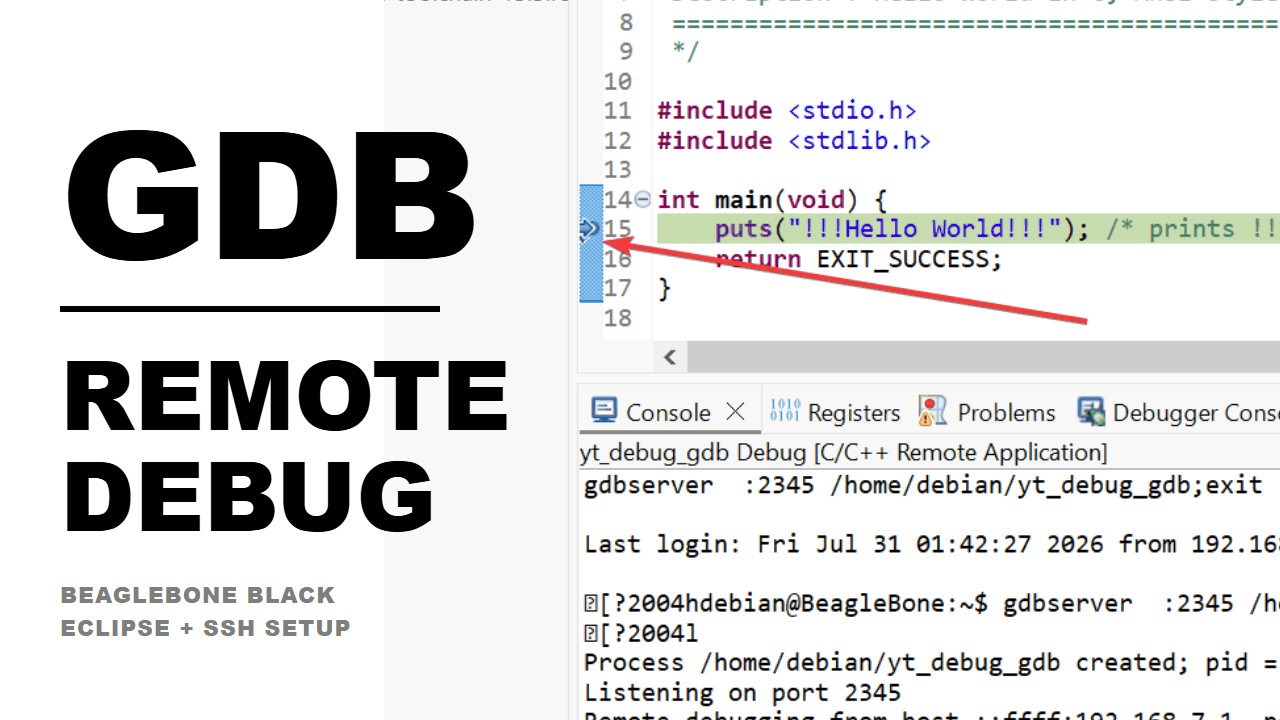
Story Hook
Think of debugging like being a doctor who wants to examine a patient's heartbeat in real time — but the patient (your BeagleBone Black) is in another room, and you're sitting at your desk (your Windows PC). You can't just walk over and poke at the code directly on the board every time something breaks. Instead, you need a stethoscope that reaches across the network — that's exactly what remote GDB debugging through Eclipse gives you: your program runs on the BeagleBone, but you watch every variable, every breakpoint, every crash, live, from your Windows machine.
Technical Deep-Dive
The big picture — who does what
Before we touch any settings, it helps to understand the three players involved and how they talk to each other:
┌─────────────────────────┐        SSH         ┌──────────────────────────┐
│   Windows Host (Eclipse) │ ───────────────────▶│  BeagleBone Black Target │
│                          │   (copy binary)      │                          │
│  arm-none-linux-         │                      │                          │
│  gnueabihf-gdb.exe       │ ◀──── GDB protocol ──│      gdbserver           │
│  (the "brain" — reads    │   (usually port 2345 │  (the "hands" — actually │
│   source, sets           │    or similar)        │   runs & controls the   │
│   breakpoints, shows     │                      │   ARM binary)            │
│   variables)             │                      │                          │
└─────────────────────────┘                      └──────────────────────────┘
Here's what tripped me up at first: your Windows PC is an x86/x64 machine,
but the BeagleBone is ARM. A normal gdb on Windows has no idea
how to read ARM machine code or registers. That's why we need a special cross-debugger
— arm-none-linux-gnueabihf-gdb.exe — which understands ARM instructions, but
still runs natively on Windows. The actual execution of your program happens on the
BeagleBone, controlled remotely by gdbserver, which is the tiny program that sits
on the target and takes orders from GDB over the network.
In short:
gdbserver(on the BeagleBone) = the hands. It runs your program and can pause it, step it, and inspect memory.arm-none-linux-gnueabihf-gdb.exe(on Windows, inside Eclipse) = the brain. It knows your source code and sends commands like "set breakpoint at line 42" over the network togdbserver.
Step 1 — Install gdbserver on the target (BeagleBone Black)
SSH into your BeagleBone first, then run:
sudo apt update
sudo apt install gdbserver
That's it on the target side — gdbserver is a small piece of software whose only
job is to receive commands from a remote GDB and execute them locally.
Quick sanity check it installed correctly:
gdbserver --versionStep 2 — Install the ARM cross-GDB on the Windows host
On your Windows machine, you need a version of GDB built to understand ARM binaries. This typically comes bundled with an ARM cross-compiler toolchain (for example, a GNU Arm Embedded Toolchain, or whatever toolchain you used to build your project for the BeagleBone).
After installing, confirm the executable exists:
<toolchain-install-folder>\bin\arm-none-linux-gnueabihf-gdb.exe
Why the specific name matters: the prefix
arm-none-linux-gnueabihf- tells you exactly what this toolchain targets:
| Part of the name | Meaning |
|---|---|
arm | Target CPU architecture — ARM |
none | No specific vendor |
linux | Target OS — Linux (matches Debian on the BeagleBone) |
gnueabihf | GNU EABI with hard-float — uses the FPU hardware for floating point instead of software emulation |
If your BeagleBone binary was built with a matching toolchain (same gnueabihf
ABI), this GDB will be able to read its debug symbols correctly. Mismatched ABIs are a classic
source of "it connects but nothing makes sense" bugs.
Step 3 — Create the Debug Configuration in Eclipse
Now we wire the two sides together inside Eclipse.
Navigation: Run → Debug Configurations... → C/C++ Remote Application →
New Configuration
Flowchart: what Eclipse needs to know
        ┌─────────────────────────────────────┐
        │  C/C++ Remote Application (New)      │
        └──────────────────┬────────────────────┘
                            v
        ┌─────────────────────────────────────┐
        │  Main tab                            │
        │  - Which Eclipse project?            │
        │  - Which local compiled binary?      │
        │  - Which SSH connection (target IP)? │
        │  - Where to copy the binary on the   │
        │    target (remote path)?             │
        └──────────────────┬────────────────────┘
                            v
        ┌─────────────────────────────────────┐
        │  Debugger tab                        │
        │  - Which GDB executable to use?      │
        │    (the ARM cross-gdb.exe)           │
        └─────────────────────────────────────┘
Main tab — the four things it needs
| Field | What you set it to | Why |
|---|---|---|
| Project | Your Eclipse C/C++ project | Tells Eclipse which source tree the debug symbols belong to |
| C/C++ Application | Local path to the compiled ARM binary (e.g. Debug/app) | This is the local copy Eclipse builds — it gets copied over |
| Connection | A new SSH connection pointing at the BeagleBone's IP address | This is the transport Eclipse uses to copy the file and (often) launch gdbserver remotely |
| Remote Absolute File Path | e.g. /home/debian/app | Where on the BeagleBone filesystem the binary will actually live and run from |
Creating the SSH connection: click New... next to Connection,
choose SSH, and enter the BeagleBone's IP address plus your login (commonly debian).
This is the same kind of connection you'd use to just SSH in from a terminal — Eclipse is
simply automating that file copy + remote launch for you.
Debugger tab — pointing at the right GDB
| Field | What you set it to |
|---|---|
| GDB debugger | Browse to arm-none-linux-gnueabihf-gdb.exe in your toolchain's bin folder |
| GDB command file (optional) | Leave default unless you have custom .gdbinit startup commands |
This is the critical link back to Step 2 — if you leave this on the default gdb
(the plain Windows one), Eclipse will fail to make sense of the ARM binary's symbols, because
a native Windows GDB doesn't speak ARM.
Step 4 — What actually happens when you click Debug
Once configured, hitting the Debug button in Eclipse kicks off this sequence:
1. Eclipse copies your compiled binary over SSH
   to the Remote Path on the BeagleBone
                    │
                    v
2. Eclipse (or you, manually) starts gdbserver
   on the target, pointed at that binary,
   listening on a TCP port
                    │
                    v
3. arm-none-linux-gnueabihf-gdb.exe launches
   locally on Windows and connects to
   <BeagleBone IP>:<port>
                    │
                    v
4. You get a normal Eclipse debug session —
   breakpoints, variable inspection, step
   in/over/out — except the code is physically
   executing on the BeagleBone
Command reference table
| Command / Location | Purpose |
|---|---|
sudo apt update | Refresh the target's package index before installing |
sudo apt install gdbserver | Install the remote debug "hands" on the BeagleBone |
gdbserver --version | Confirm gdbserver installed correctly |
<toolchain>\bin\arm-none-linux-gnueabihf-gdb.exe | The ARM-aware debugger "brain" that runs on Windows inside Eclipse |
Run → Debug Configurations → C/C++ Remote Application | Where you wire project, binary, SSH connection, and remote path together |
| Debugger tab → GDB debugger field | Where you point Eclipse at the cross-gdb executable |
Key Takeaways
- Remote debugging splits the work:
gdbserveron the BeagleBone actually runs and controls your program;arm-none-linux-gnueabihf-gdb.exeon Windows (inside Eclipse) understands the ARM code and drives the session. - You need a cross-GDB on Windows — not the regular
gdb— because your host is x86/x64 and your target is ARM; a plain Windows GDB can't decode ARM instructions or registers. - The
gnueabihfin the toolchain name means hard-float ABI — make sure it matches how your target binary was actually built, or debug symbols won't line up correctly. - In Eclipse's Debug Configuration, the Main tab handles where things live (project, local binary, SSH connection, remote path) and the Debugger tab handles which GDB to use.
- The SSH connection you create for Eclipse is doing the same job as a manual SSH login — Eclipse just automates copying the binary and coordinating the debug session on top of it.
- End to end: Eclipse copies the binary →
gdbserverlaunches on the target → the ARM cross-GDB connects over the network → you debug live, breakpoints and all, while the code runs on real BeagleBone hardware.